Showing posts with label Tutorial. Show all posts

Friday, 8 February 2013

How can i Block Website in my Browser(P.C)

You can easily and effectivily block access to a website by adding it to your Windows HOSTS file. (Yes, Hosts is capitalised for some strange reason).

1.Go to your HOSTS file which is located at:
C:\WINDOWS\SYSTEM32\DRIVERS\ETC for windows Vista and XP
C:\WINNT\SYSTEM32\DRIVERS\ETC for Windows 2k
C:\WINDOWS for Windows 98 and ME

2. Open HOSTS with Notepad.

The default Windows HOSTS looks like this:
______________________

# Copyright © 1993-1999 Microsoft Corp.
#
# This is a sample HOSTS file used by Microsoft TCP/IP for Windows.
#
# This file contains the mappings of IP addresses to host names. Each
# entry should be kept on an individual line. The IP address should
# be placed in the first column followed by the corresponding host name.
# The IP address and the host name should be separated by at least one
# space.
#
# Additionally, comments (such as these) may be inserted on individual
# lines or following the machine name denoted by a "#" symbol.
#
# For example:
#
# 102.54.94.97 rhino.acme.com # source server
# 38.25.63.10 x.acme.com # x client host
#
127.0.0.1 localhost
_____________________________

3. Directly under the line that says 127.0.0.1 Localhost, you will want to type:

127.0.0.1 name of the URL you want to block

For example to block the MySpace.com homepage (highly recommended!), simply type:

127.0.0.1 myspace.com
127.0.0.1 www.myspace.com

Other parts of MySpace could be blocked in a similar way:

127.0.0.1 search.myspace.com
127.0.0.1 profile.myspace.com
etc etc etc...

You may need to add sites with both with and without the "www.". Test after blocking to make sure you got it right.

You can add as many sites as you wish to block in this fashion. I, myself, have over 12000 undesireable and dangerous sites in my personal HOSTS file!

4. Close Notepad and answer "Yes" when prompted.

5. Reboot your computer and attempt to access your now blocked website. You should see a Cannot find server or DNS Error saying: "The page cannot be displayed".

-----------------------------

Some people suggest that you add a website that you wish to block by adding it to Internet Explorer's Restricted Zone. This does NOT totally block a site. It will only RESTRICT a site from certain actions such as using javascript, Active-X and Java etc.

Some people suggest that your add a website to the Internet Explorer 'Privacy' settings. This does not block a site. It only stops that site from using cookies.

Friday, 1 February 2013

How to increase your computer or laptop processing speed
      Hey guys now i am going to tell you here how to increase your computer or laptop processing 
      speed. There is the three ways like %temp% type in run in window
      xp to increase the computer speed. Here is the first method:-

    FIRST WAY


  1. First click on start menu in window xp
  2. Then click on run
  3. Type %temp% in run box
  4. Click on ok
  5. Here is the some temporary files of your system, select all and permanently delete them.
Now your computer speed increase.This idea works works in all operating systems.

   SECOND WAY
  1. Click on again start menu
  2. then click on Run
  3. Type msconfig in box
  4. Click on ok
  5. System configuration utility window appears on screen
  6. Click on service tab disable the all extra services that you are not used like infrared monitor,smart card etc.
Now you have found that your computer or laptop speed s increased. This idea is work in all operating systems.

   THIRD METHOD
  1. Click on my computer
  2. Then right click on my computer
  3. Click on properties
  4. System properties window appears
  5. Now click on advance tab
  6. Click on performance settings
  7. Again click on advance tab
  8. Click on change to change the paging file size of your computer
  9. Now change the initial size accordingly
  10. after set click on set
  11. Click on ok
  12. then click on apply and ok
   Now you have obviously found that your computer is increased. This idea work in all operating systems.If you have any                Queries then post it here.....

Thursday, 31 January 2013

How to Speed Up Utorrent 3.1

 I Hope My All Fan Are Fine. So I Share A new posting.
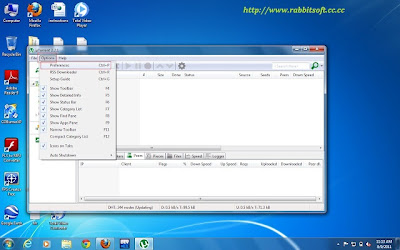
Post title is ''How to speed up uTorrent''.1st download utorrent"Download"
Now Follow these Steps:
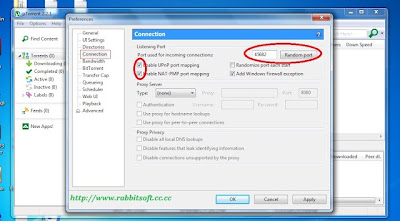
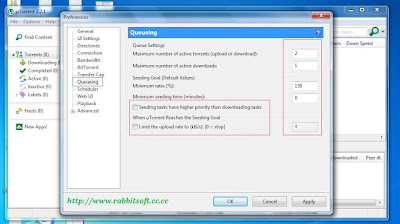
1.Go To Preferences From Option
 2.Go To Connection
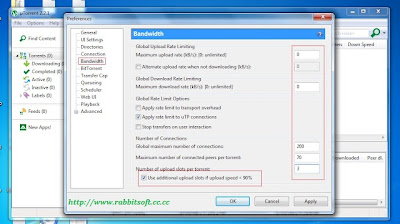
3.Goto Bandwidth
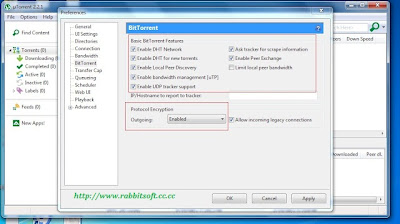
  Option and set the value as shown below
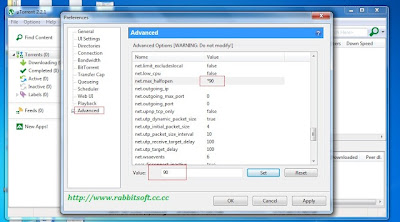
Now Click on Advanced option and search for net.max_halfopen and set its value to 90
Click On Apply And Ok
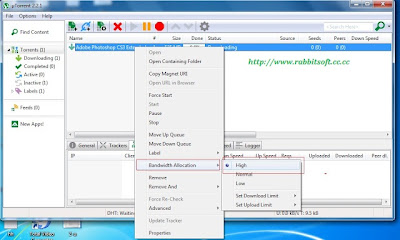
 Now Go On main torrent , right click on your downloading file and select Bandwidth Allocation then High
 
Increase your IDM speed Free

 
Today Our Topic is How To Increase IDM Speed Free Its very easy just follow these step And with screen shot


  1. Open idm 
  2. Go to option 
  3. click on connection
  4. Then you can see Your network "connection type/speed" select your network connection
  5.  Now below select number 16 in "default.max.conn.number:
  6.  Click Ok Now Setting is Done 
  7. Enjoy
  8. Fore More Here http://abeermirza.blogspot.com/


Wednesday, 30 January 2013


BIOS Password Backdoors in Laptops

Synopsis: The mechanics of BIOS password locks present in current generation laptops are briefly outlined. Trivial mechanisms have been put in place by most vendors to bypass such passwords, rendering the protection void. A set of master password generators and hands-on instructions are given to disable BIOS passwords.

When a laptop is locked with password, a checksum of that password is stored to a so-called FlashROM - this is a chip on the mainboard of the device which also contains the BIOS code and other settings, e.g. memory timings.

For most brands, this checksum is displayed after entering an invalid password for the third time:

The dramatic 'System Disabled' message is just scare tactics: when you remove all power from the laptop and reboot it, it will work just as before. From such a checksum (also called "hash"), valid passwords can be found by means of brute-forcing.

The bypass mechanisms of other vendors work by showing a number to the user from which a master password can be derived. This password is usually a sequence of numbers generated randomly.

Some vendors resort to storing the password in plain text onto the FlashROM, and instead of printing out just a checksum, an encrypted version of the password is shown.

Other vendors just derive the master password from the serial number. Either way, my scripts can be used to get valid passwords.

A few vendors have implemented obfuscation measures to hide the hash from the end user - for instance, some FSI laptops require you to enter three special passwords for the hash to show up (e.g. "3hqgo3 jqw5340q1ww294e", "enable master password" shifted one up/left on the keyboard). Some HP/Compaq laptops only show the hash if the F2 or F12 key has been pressed prior to entering an invalid password for the last time.

Depending on the "format" of the number code/hash (e.g. whether only numbers or both numbers and letters are used, whether it contains dashes, etc.), you need to choose the right script - it is mostly just a matter of trying all of them and finding the one that fits your laptop. It does not matter on what machine the script are executed, i.e. there is no reason to run them on the locked laptop.
This is an overview of the algorithms that I looked at so far:

VendorHash EncodingExample of Hash Code/SerialScripts
Compaq5 decimal digits12345pwgen-5dec.py
Windows binary
Dellserial number1234567-595B
1234567-D35B
1234567-2A7B

Windows binary&source
Fujitsu-Siemens5 decimal digits12345pwgen-5dec.py
Windows binary
Fujitsu-Siemens8 hexadecimal digitsDEADBEEFpwgen-fsi-hex.py
Windows binary
Fujitsu-Siemens5x4 hexadecimal digitsAAAA-BBBB-CCCC-DEAD-BEEFpwgen-fsi-hex.py
Windows binary
Fujitsu-Siemens5x4 decimal digits1234-4321-1234-4321-1234pwgen-fsi-5x4dec.py
Windows binary
Hewlett-Packard5 decimal digits12345pwgen-5dec.py
Windows binary
Hewlett-Packard/Compaq Netbooks10 charactersCNU1234ABCpwgen-hpmini.py
Windows binary
Insyde H20 (generic)8 decimal digits03133610pwgen-insyde.py
Windows binary
Phoenix (generic)5 decimal digits12345pwgen-5dec.py
Windows binary
Sony7 digit serial number1234567pwgen-sony-serial.py
Windows binary
Samsung12 hexadecimal digits07088120410C0000pwgen-samsung.py
Windows binary


The .NET runtime libraries are required for running the Windows binary files (extension .exe). If the binary files (.exe) don't work out for you, install Python 2.6 (not 3.x) and run the .py script directly by double-clicking them. Make sure that you correctly read each letter (e.g. number '1' vs letter 'l').

Вячеслав Бачериков has also converted my scripts to javascript so you can calculate the passwords with your browser: http://bios-pw.org/(sources).

Please leave a comment below on what make/model the scripts work. Also, be aware that some vendors use different schemes for master passwords that require hardware to be reset - among them are e.g. IBM/Lenovo. If you find that your laptop does not display a hash or the scripts do not work for you for whatever reason, try to:
  • use a USB keyboard for entering the password for avoiding potential defects of the built-in keyboard,
  • run CmosPwd to remove the password if you can still boot the machine,
  • overwrite the BIOS using the emergency recovery procedures. Usually, the emergency flash code is activated by pressing a certain key combination while powering on the machine. You also need a specially prepared USB memory stick containing the BIOS binary. The details are very much dependent on your particular model. Also, be aware that this can potentially brick your device and should only be done as a last measure.
  • Some dell service tags are missing the suffix - just try the passwords for all suffices by adding -595B, -2A7B and -D35B to your service tags. 
  • The passwords for some HP laptops are breakable with this script.
  • Unlocking methods for some Toshiba laptops are describedhere
  • Some older laptop models have service manuals that specify a location of a jumper / solder bridge that can be set for removing the password.

If none of the above methods work, please use the vendor support.Please understand that my motivation for reverse-engineering comes from a personal interest - I will not accept offers to look at the specifics of certain models.

Tuesday, 29 January 2013

How to remove FBI Your Computer Has Been Locked scam from your computer?

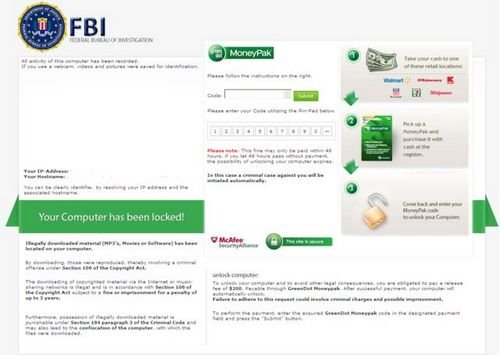
FBI Your Computer Has Been Locked is a screen locker which is created by Internet criminals with the intention of tricking unsuspecting PC users into paying a non existent fine for copyrighted material supposedly detected on their computers. This scam exploits the name of Federal Bureau of Investigation to make it seem more realistic. Notice that FBI has never used and doesn't use such screen lockers to fight Internet piracy, this screen locker was created by Cyber criminals who are hoping that you will fall for this trickery and you will pay a non existent fine to unlock your PC.
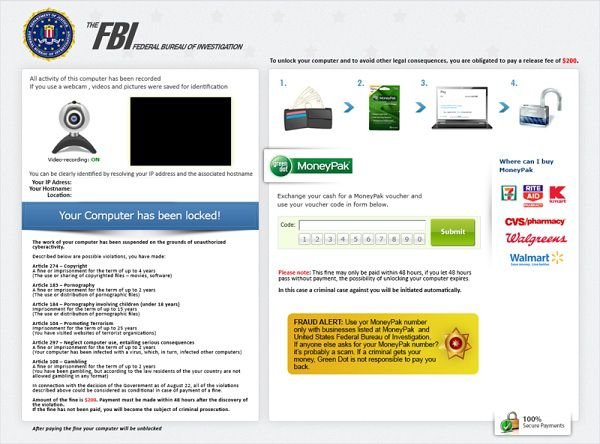
This scam is just one of many that attacks computers connected to the Internet, previously seen screen locker which also exploited the name of FBI and uses MoneyPak for payment was named The FBI Federal Bureau of Investigation. Internet criminals also uses a name of McAfee and a badge "This site is secure" to further trick PC users into believing that this screen locker is legitimate. You shouldn't trust this screen, none of the authorities are using such methods to collect fines for copyrighted material. Note that MoneyPak is used to pay the supposed fine to make the tracing of Internet criminals almost impossible. There are several variants of this scam, both uses MoneyPak and has similar deceptive messages.

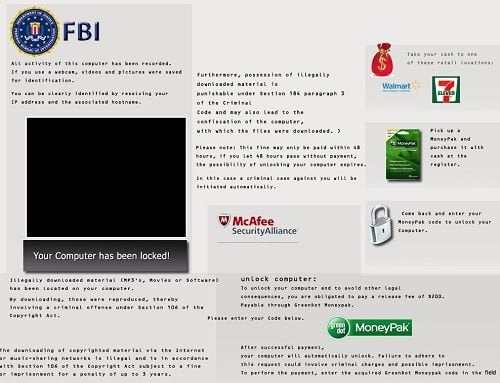
fbi all activity has been recorded
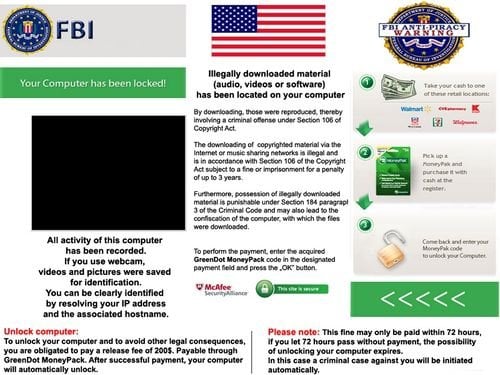
fbi anti piracy warning
fbi reventon ransomware
FBI "Your computer has been locked" is a scam, don't pay the imaginary fine, you will send your money to Cyber criminals who are responsible for releasing this misleading screen locker. If your computer screen has been locked by this message use the provided removal instructions to eliminate it.
Fake message shown in FBI "Your computer has been locked" scam:
All activity of this computer has been recorded. If you use a web cam videos and pictures were saved for identification. You can be clearly identified by resolving your IP address and the associated host name. Illegally downloaded material (MP3's, Movies or Software) has been located on your computer. By downloading those were reproduced, thereby involving a criminal offense under Section 100 of the Copyright Act. The downloading of copyrighted material via the Internet or music sharing networks is illegal and is in accordance with Section 100 of the Copyright Act subject to a fine or imprisonment for a penalty of up to 3 years.

Furthermore, possession of illegally downloaded material is punishable under Section 184 paragraph 3 of the Criminal Code and may also leed to the confiscation of the computer, with which the files were downloaded.

To unblock your computer and to avoid other legal consequences you are obligated to pay a release fee of $200 Payable through GreenDot MoneyPak. After successful payment your computer will automatically unlock. Failure to adhere to this request could involve criminal charges and possible imprisonment.

FBI "Your computer has been locked" screen locker removal:

Step 1
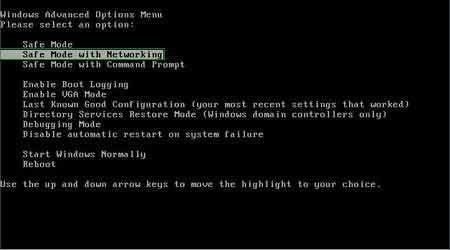
During your computer starting process press F8 key on your keyboard multiple times until Windows Advanced Options menu shows up, then select Safe mode with networking from the list and press ENTER.
Step 2
Log in to the account that is infected with FBI "Your computer has been locked" scam. Start your Internet browser and download a legitimate anti-spyware program. Update the anti-spyware software and start a full system scan. Remove all the entries that it detects.

Can't boot in Safe Mode with Networking? (FBI "Your computer has been locked" virus blocks Safe Mode with Networking)


If you have more than one user account in your operating system - please log-in to the clean account and download the recommended anti-spyware software, install it and run a full system scan, remove all the security infections it will detect, however if you have only one user account please follow this guide (this guide will show you how to create a new user account using safe mode with command prompt - using this newly created user account you will be able to remove FBI "Your computer has been locked" ransomware).
If FBI "Your computer has been locked" also blocks your operating system's Safe Mode with Networking follow these removal instructions:
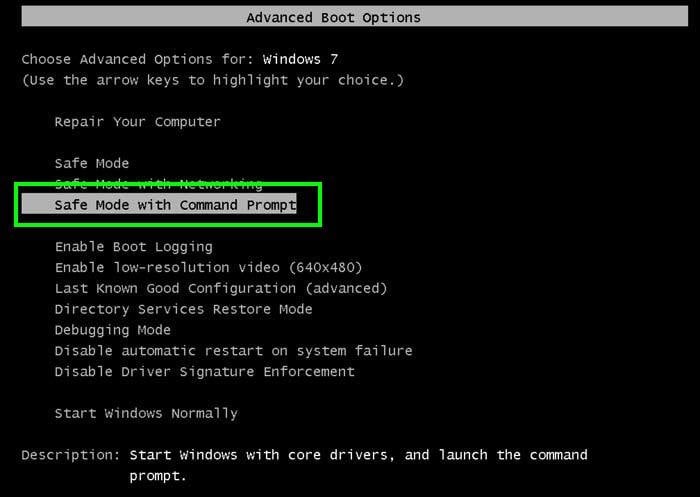
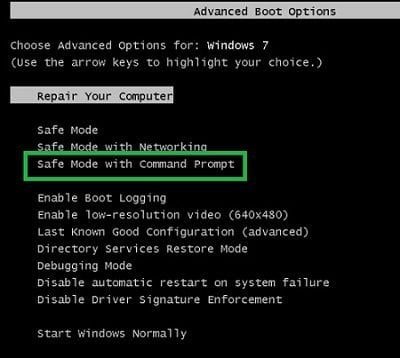
1. Start your computer in Safe Mode with Command Prompt - During your computer starting process press F8 key on your keyboard multiple times until Windows Advanced Options menu shows up, then select Safe mode with command prompt from the list and press ENTER.
Boot your computer in Safe Mode with Command Prompt
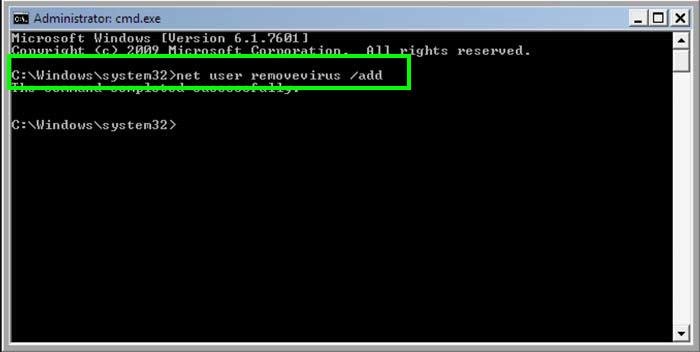
2. When command prompt mode loads enter the following line: net user removevirus /add and press ENTER.


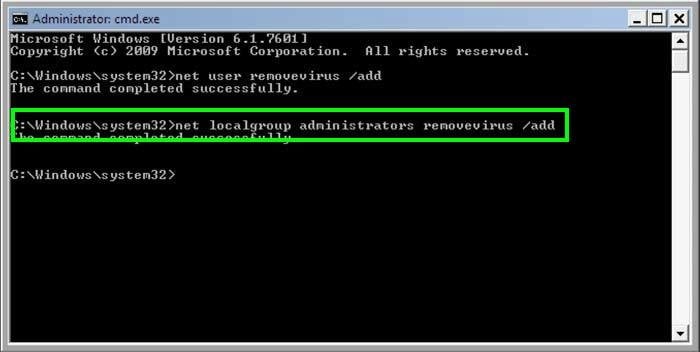
3. Next enter this line: net localgroup administrators removevirus /add and press ENTER.
creating new user using command prompt
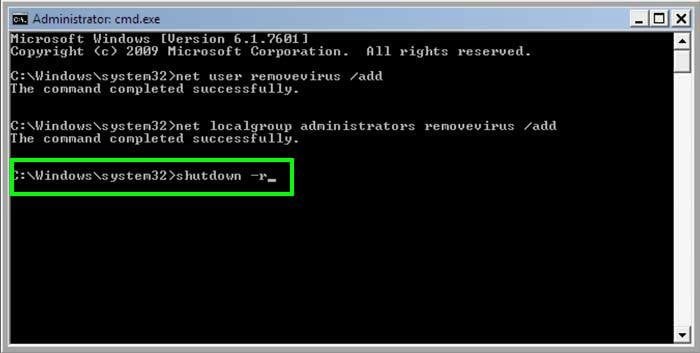
4. Finnaly enter this line: shutdown -r and press ENTER.
adding a new user in command prompt
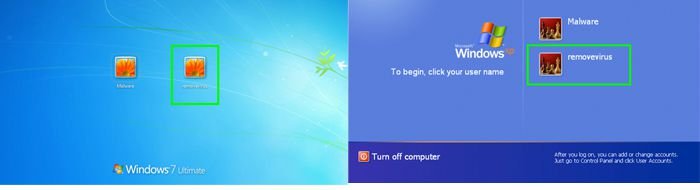
5. Wait for your computer to restart,  then boot your PC in Normal Mode and login to the newly created user account ("removevirus"). This account won't be affected by the ransomware infection and you will be able to download and install recommended anti-spyware software to eliminate this virus from your computer.
new user account created
6. Download and install recommended anti-spyware software to eliminate this ransomware infection from your computer:

Remover for FBI "Your computer has been locked" virus

If the newly created user account is also affected by the ransomware infection try doing a System Restore:
1. Start your computer in Safe Mode with Command Prompt - During your computer starting process press F8 key on your keyboard multiple times until Windows Advanced Options menu shows up, then select Safe mode with command prompt from the list and press ENTER.
Boot your computer in Safe Mode with Command Prompt
2. When command prompt mode loads enter the following line: cd restore and press ENTER.
system restore using command prompt type cd restore
3. Next type this line: rstrui.exe and press ENTER.
system restore using command prompt rstrui.exe
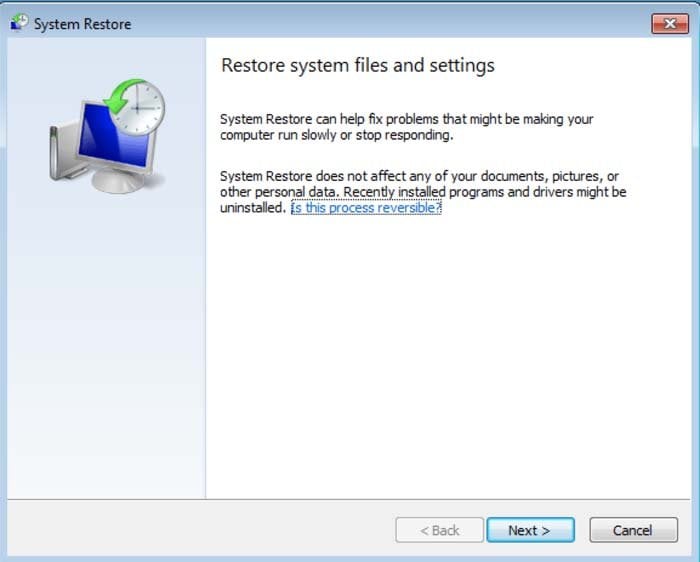
4. In the opened window click "Next".
restore system files and settings
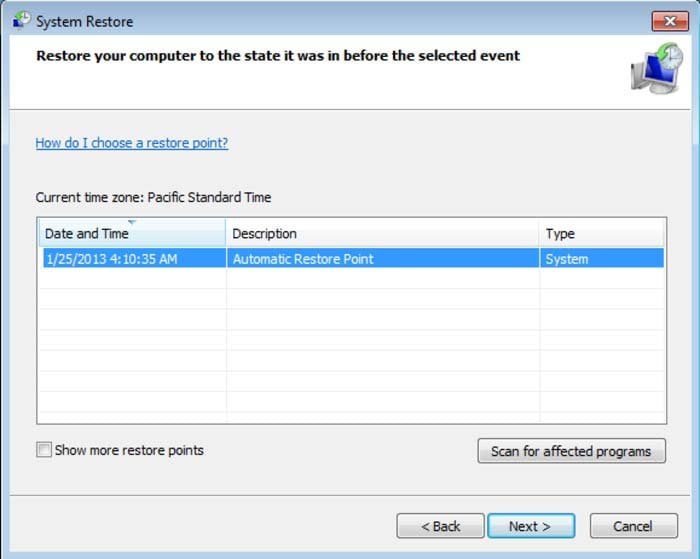
5. Select one of the available restore point and click "Next" (this will restore your computer's system to an earlier time and date, before the ransomware infiltrated your PC).
select a restore point
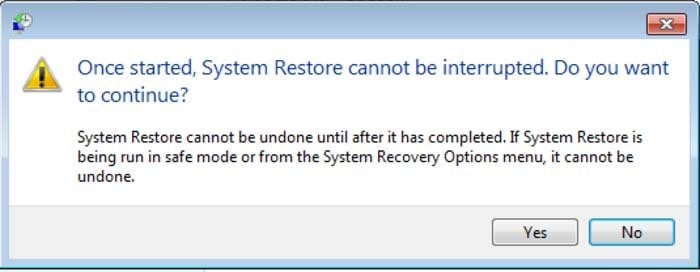
6. In the opened window click "Yes".
run system restore
7. After restoring your computer to a previous date download and scan your PC with a recommended anti-spyware software to eliminate any left remnants of "FBI - Your computer has been locked" ransomware.


Alternative FBI "Your computer has been locked" scam removal guide:


If this ransomware blocks your screen when you start your computer in safe mode with networking, try starting your PC in safe mode with command prompt.
1. During your computer starting process press F8 key on your keyboard multiple times until Windows Advanced Options menu shows up, then select Safe mode with command prompt from the list and press ENTER.
win 7 safe mode with command prompt
2. In the opened command prompt type explorer and press Enter. This command will open explorer window, don't close it and continue to the next step.
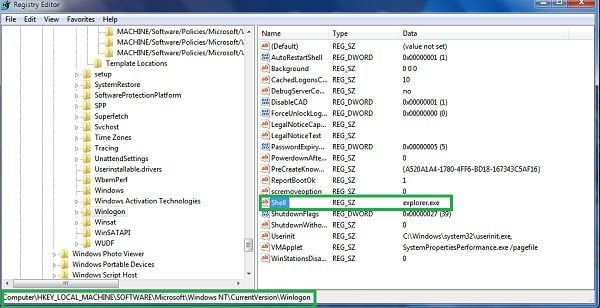
3. In the command prompt type regedit and press Enter. This will open the registry editor window.
4. In the registry editor window you should navigate to HKEY_LOCAL_MACHINE\SOFTWARE\Microsoft\Windows NT\CurrentVersion\Winlogon\
registy editor winlogon
5. In the right side of the window locate "Shell" and right click on it. Click on Modify. The default value data is Explorer.exe if you see something else written in this window remove it and type in Explorer.exe (you can write down whatever else was written in the value data section - this is a path of the rogue execution file) - use this information to navigate to the rogue executable and remove it.
6. Restart your computer, download and install a legitmate anti-spyware software and perform a full system scan to eliminate any left remnants of FBI "Your computer has been locked" scam.
If you can't start your computer in safe mode with networking (or with command prompt) you should boot your computer using a rescue disk. Some variants of ransomware disables safe mode making it's removal more complicated. For this step you will need access to another computer. After removing FBI "Your computer has been locked" scam from your PC restart your computer and scan it with a legitimate antispyware software to remove any possibly left remnants of this security infection.
Other tools known to remove FBI "Your computer has been locked" scam:
Some malicious software modifies browser settings and disables downloads of spyware and virus removing software. If you have problems downloading anti-spyware software with Internet Explorer, try downloading with Chrome, FireFox, Opera, etc.
If you can't access Internet:

Load your computer in safe mode. Click Start, click Shut down, click Restart, click OK. During your computer starting process press F8 key on your keyboard multiple times until you see Windows Advanced Option menu, then select Safe mode with networking from the list.
Start Task manager. Press ctrl+alt+del (or ctrl+shift+esc) and end task the processes of rogue program. ( if after this procedure you can't access any programs press ctrl+alt+del, click File, select New Task, and type explorer.exe then press OK.

Open Internet explorer, click Tools and select Internet Options. Select Connections, then click LAN settings, if a Use a proxy server for your LAN is checked, un-check it and press OK.

After this procedure you should be able to access Internet. Now you can download anti-spyware software from our "Top spyware removers" section and run a full scan. Download, install and don't forget to update your selected anti-spyware program.

Sunday, 9 December 2012


During your video calls you can use hotkeys to easily capture images of your friends and family. Video snapshots will be stored locally on your computer.
To set a hotkey for taking snapshots during your video calls:
  1. In Skype, in the menu bar, click Tools > Options. From the Options window selectAdvanced > Hotkeys.
  2. Tick Enable keyboard shortcuts.
  3. Tick Take a snapshot during video calls.
  1. In the pop-up window, enter a key combination (For example tick Ctrl and enter S to assignCtrl+S as a hotkey combination) then click OK and Save.
To change the hotkey, click Change selected shortcut from the Options window, and assign the new hotkey.
When you’ve taken some snapshots, you can view them all by clicking Gallery.
Click Share to share your snapshots with your friends, and click Locate to find the images on your computer.
Contect Me


How to make pen drive as ram?


For XP/Vista :

Follow these steps :-

1. Insert the Pen Drive (1GB atleast) in the USB port
try to prefer 4GB.
2. Let the PC do what it wants to do to detect it..
3. After it finished his work, you have to act smart,

" Here goes the real thing "

4. Right Click on My Computer -> Properties
5. Advanced -> Performance Settings
6. Advanced -> Change
7. Select the Pen Drive
8. Click on Custom Size

" Check the value of space available "

9. Enter the same in the Initial and the Max columns

" You just used the space of the PenDrive as a Virtual Memory "

Restart...
" VOILA !!! Your PC is fast and furious "


Contect Me : 
                                          

Sunday, 2 December 2012


Join This Group For More Tricks..


Abeer Mirza

DRAG AND DROP THIS IMAGE TO BOOKMARK BAR


Drag and Drop this image to Bookmark Bar. This will create a bookmark
[[ Abeer Mirza ]] 

This is Bookmark.


Tuesday, 27 November 2012

Repair Windows XP Without Bootable CD

   Many Times the registry entries or files of our system                            
   got corrupted because of viruses or other reasons, in
   this case for repairing windows XP we format our 
   system or repair windows xp by some other ways like
   by using Bootable cd method. But through this method
  we can repair our windows xp without using Bootable
  cd or Formatting System. This Method is Called Web
  Folders XP Repairing System.


      Follow The Steps for Repairing Windows Xp :
  • Click On Start and Goto Run.
  • In Run Type webfldrs.msi
  • New Window Will Open In Your Screen Now Click On Select Reinstall Mode.
  • Again New Window Will Open In Your Screen Just Tick Marks On all the Options and Click Ok.
  • It Will Take Some Time in Repairing Your Windows XP and When the Process will be Completed it will ask to Restart your System then Just Restart your System.
That's It, By Using This Method Your Windows XP will be repaired without using bootable cd or Formatting.

Follow Us On Facebook : Join Our Facebook Group

Login XP without Password

Hey Readers, Many of you know this but still for those who are not aware of this trick I am posting this. If you forgot password or want to logon in others computer just follow this steps:

  • Start Computer.
  • When it asks for password press ctrl+alt+del keys twice.
  • Now another window opens asking for password.
  • On that window in the place of username just put ADMINISTRATOR and leave the password field blank and hit enter.
  • Now you can logged in as a normal user.
Follow Us on Facebook : Join Our Facebook Group

Use Safe Mode option to reset windows 7 admin password


Did you lost windows 7 administrator password? Are you worried about the next step to get the solution to reset it?
Here it comes, yes you can reset Windows 7 password your own through various available methods to reset your lost password. Windows 7 creates a default build-in administrator at the time of windows 7 installation. This default administrator doesn't have any password. In the password loss situation, you can assign password to default administrator and access your computer. Follow the steps written below for complete procedure.
  1. Start computer press F8 key while it is booting. It will show you black screen with few options select "Safe Mode with Command Prompt" option with arrow keys and hit Enter. Now computer will start loading safe mode and at the end command prompt will visible.
  1. Now with the help of this command prompt you can reset administrator password. Type “net user” command and hit Enter it will show list of all users.
  1. Now type net user xyz 123456 to reset the password of the user xyz to 123456 (in place of XYZ you need write the name of user for which you want to change password and write your desire password in place of 123456) and press Enter.
  2. A message “the command completed successfully” will appear that means your password has been successfully reset.
  1. Now restart your computer and login with username: xyz and password: 123456. you can access your computer and reset other accounts password control panel.

This is the easiest way to reset lost windows 7 password. But it will work when you are able to start computer in safe mode. If safe mode could not be loaded then you need to try some other method to reset windows 7 password.


Contect Me : Facebook

Sunday, 25 November 2012

Make win7 usb bootable Free (2012 updated)


Now you have to follow these steps.Its very easy.

How to create a Windows 7,8 bootable USB (W-C PASS)


Now your Done.
Download and Share

Contect Me : Facebook